How do I create and share a post?
Sharing your thoughts, updates, and moments with the community is at the heart of the AetherLink experience. Creating a post is simple and can be done directly from your main feed.
Step 1: Open the Post Creator
From your main Feed page, locate the purple + Create Post button. This button is typically found near the top of the feed.
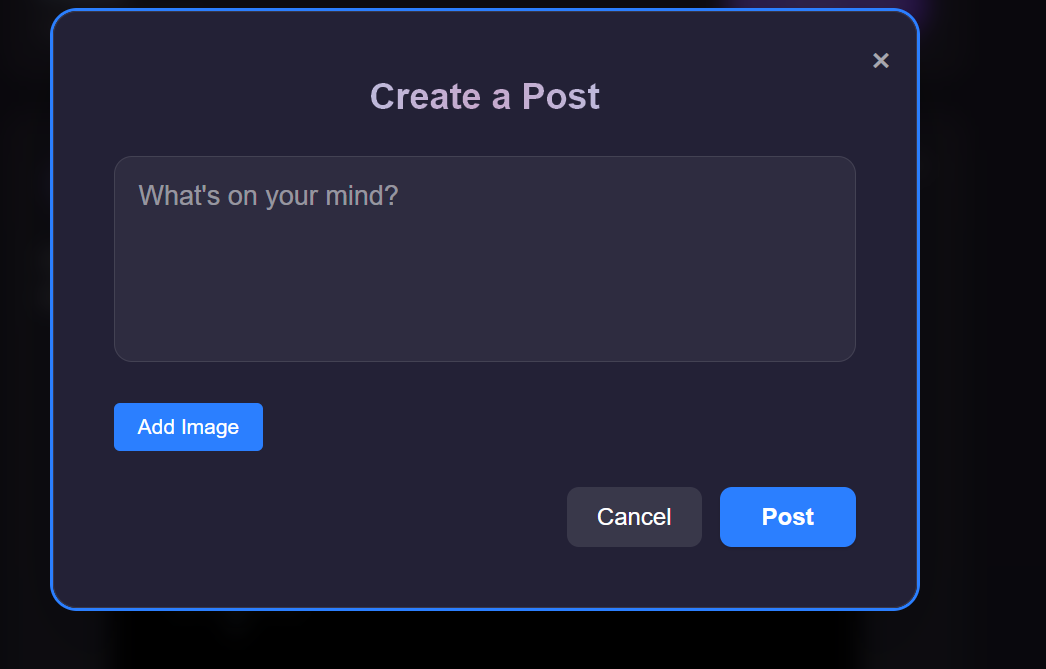
Clicking this button will open the "Create a Post" window, where you can compose your message.

Step 2: Compose Your Post
Inside the "Create a Post" window, you have a few options:
Add Text: Type your message, question, or update into the text box that says, "What's on your mind?". You can use #hashtags here to make your post more discoverable to others interested in that topic.
Add an Image: To include a picture in your post, click the blue
Add Imagebutton. This will open your device's file browser, allowing you to select and upload an image.
Step 3: Share Your Post
Once you are happy with your text and have added an image (if desired), click the blue Post button at the bottom right of the window.
Your post will be published immediately. It will appear at the top of the "All Posts" global feed and at the top of the "Following Only" feed for everyone who follows you.
Changed your mind? If you decide not to share your post, simply click the Cancel button aka the × icon in the top corner to close the window without posting.
Editing or Deleting Your Post
Made a typo or want to remove something you've shared? You have full control over your posts even after they've been published.
How to Edit a Post
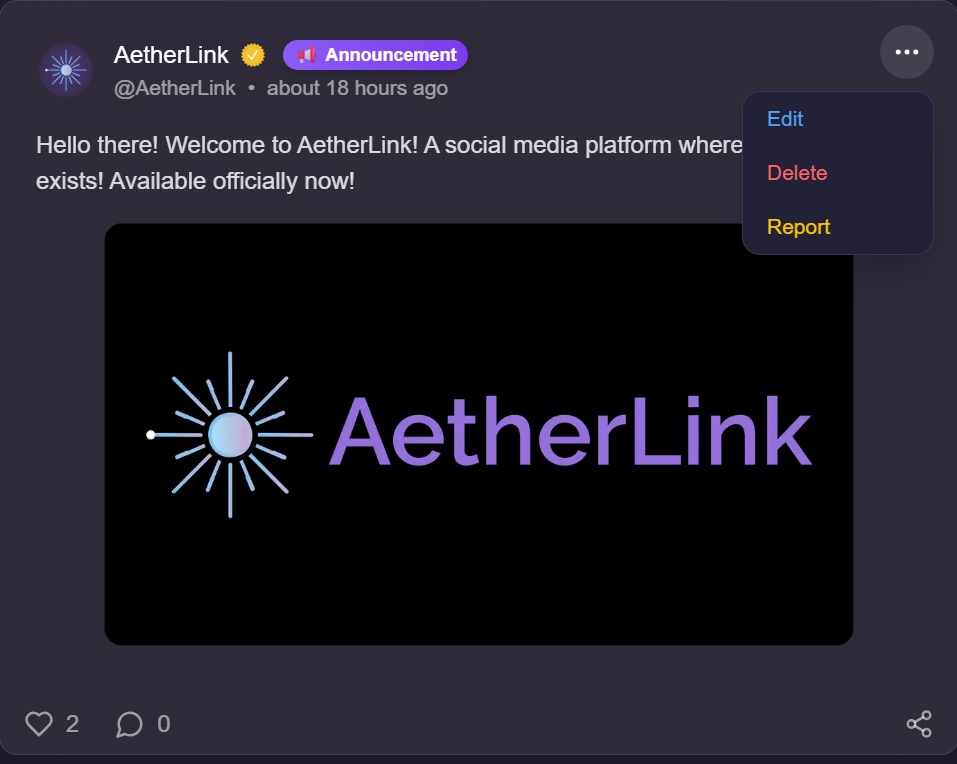
Locate the post you wish to change on your feed or profile page.
Click the three-dot menu icon (
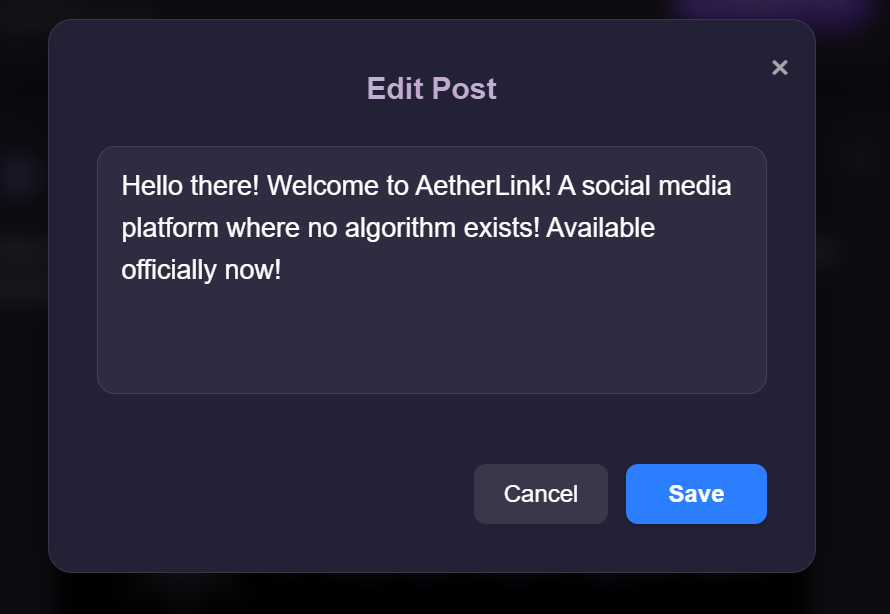
...) located in the top-right corner of the post.Select Edit from the dropdown menu. The Edit Post window will reappear with your original content. Make your desired changes to the text.
Click the
Savebutton to update your post with the new edits.
Please Note: At this time, you cannot edit post images, so if you wish to do so, you will have to delete the post, and then repost it in the desired way.
How to Delete a Post
Find the post you want to permanently remove.
Click the three-dot menu icon (
...) in the top-right corner of the post.Select Delete from the dropdown menu.
A confirmation prompt will appear to ensure you don't delete something by accident. Confirm your choice to proceed.
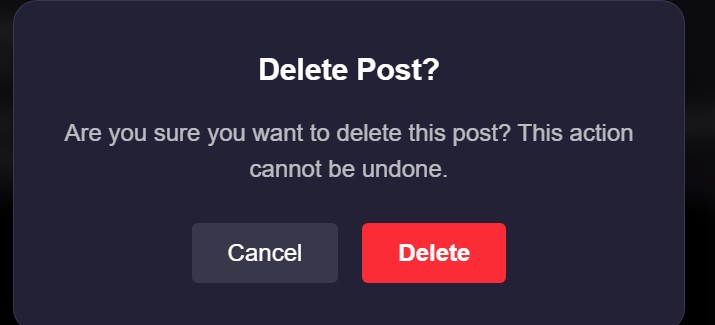
Important: Deleting a post is a permanent action. Once a post is deleted, it cannot be recovered.